
Tame the Teams Tsunami: Time Management Tricks to Reclaim Your Focus
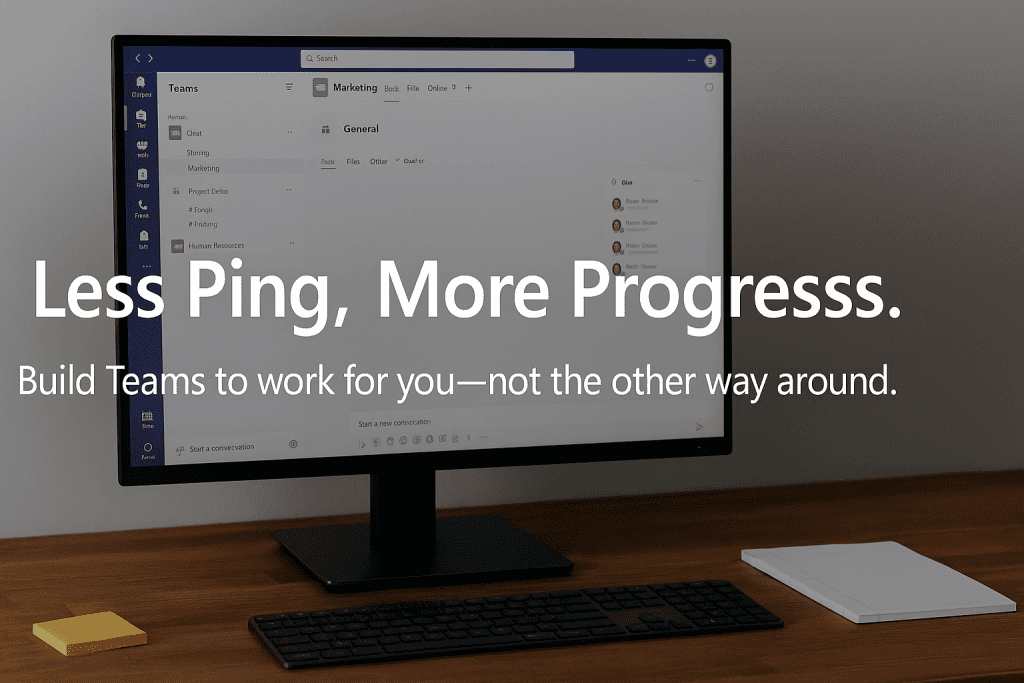
We all love Microsoft Teams. Until we don’t.
It starts with one ping… then a channel mention… then a group chat… then a reply in a thread from a meeting you weren’t even in… and suddenly it’s noon and you’ve spent your entire morning reacting.
Sound familiar?
Good news: Microsoft Teams isn’t the problem. It’s how most of us are using it.
From Inbox Chaos to Teams Clarity
Earlier this year, I completely redesigned how I managed my inbox:
- I created 4 core folders: Action, Read Later, Waiting, and Reference
- I started using Outlook rules and Copilot to filter, file, and free up my time
- I reclaimed control of my day
And I’m still refining it every week, because better productivity is a process.
Now? I’ve applied that same mindset to Microsoft Teams.
It All Starts With Your Calendar
Your calendar is your blueprint. When it’s intentional, it gives structure to your day, and that structure should flow into how you use Teams.
I start each day with a quick calendar review, then adjust my Teams presence accordingly:
- “Available” when I’m open to connect
- “Busy” or “Do Not Disturb” during focus blocks
- Scheduled Focus Time that syncs automatically from Outlook
Lead with intention, instead of reacting to every ping, buzz, or pop-up.
Build Teams to Work
For
You, Not Against You
If you want to stop the churn-and-burn feeling that Teams can create, you have to take ownership of how it’s set up.
Here’s how I’ve started managing Teams like I manage my inbox:
- Selections: Choose which Teams and channels matter. Hide or unfollow the rest.
- Favorites: Pin key chats and channels, my manager, core team, and project leads, so they’re always visible and top of mind.
- Groups & Tags: Use Teams tags to quickly communicate with the right people without pinging everyone.
- Notification Settings: Customize what breaks through and what stays silent (more on this below).
- Mute + Manage: Mute group chats that don’t require real-time input. They’ll still be there when you need them. (I mute about 90% of my chats; I do the same thing on iMessages.)
Time Management Tricks Inside Microsoft Teams
Here are some of the tactics I use every day to stay focused and in control:
1. Follow Channels Selectively
Only follow channels that are truly critical to your role. Unfollow the noise.
2. Mute Non-Essential Group Chats
If you’re not actively contributing or being asked for input, mute the chat and check it during a break.
3. Pin Power Channels and Key Chats
Pin your high-value conversations to the top. Keeps you focused on what matters now.
4. Adjust Notification Settings
Take 10 minutes to customize your notification settings. Focus on mentions and priorities, and silence the rest.
5. Use Tags for Group Messaging
Stop typing five names every time. Tag like @ChrisCoreTeam or @CoffeeHour to help you communicate fast and clean.
6. Protect Focus Time
Block your calendar manually for daily focus blocks. Let Teams auto-update your status to prevent interruptions.
Final Thought: Time is Your Most Valuable Resource
Teams should work for you, not control your day. Just like I did with my inbox, I’m learning to redesign how I use Teams to match how I want to work, not just how others expect me to respond.
This isn’t about working harder. It’s about working smarter.
Reduce churn. Avoid the burnout. Set boundaries. Create clarity.
And most importantly, permit yourself to keep getting better every day.
What’s one small change you’ve made in Teams that made a big impact on your day? I’d love to hear it.